How to add files, folders, or folder trees?
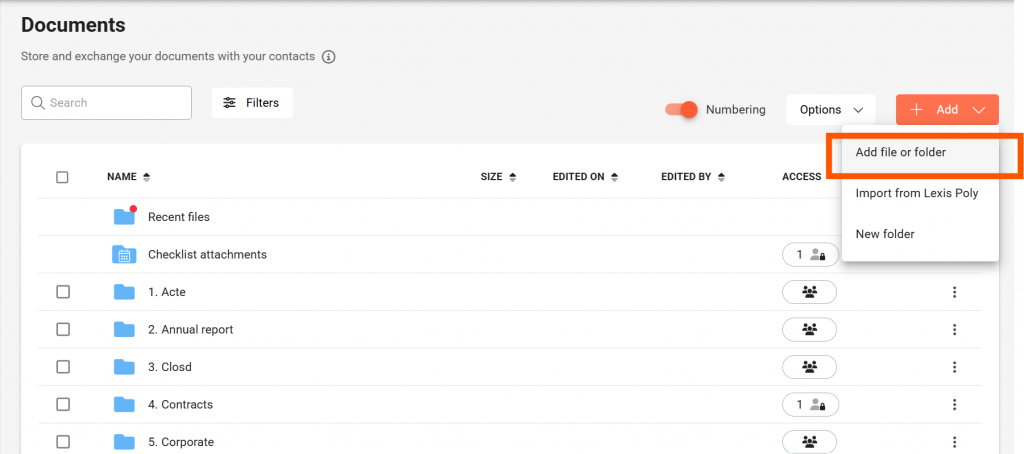
To add files or folders to the Documents page, click Add, then Add file or folder at the top right of the page.
Click on Import folders or Import files then Start upload to confirm
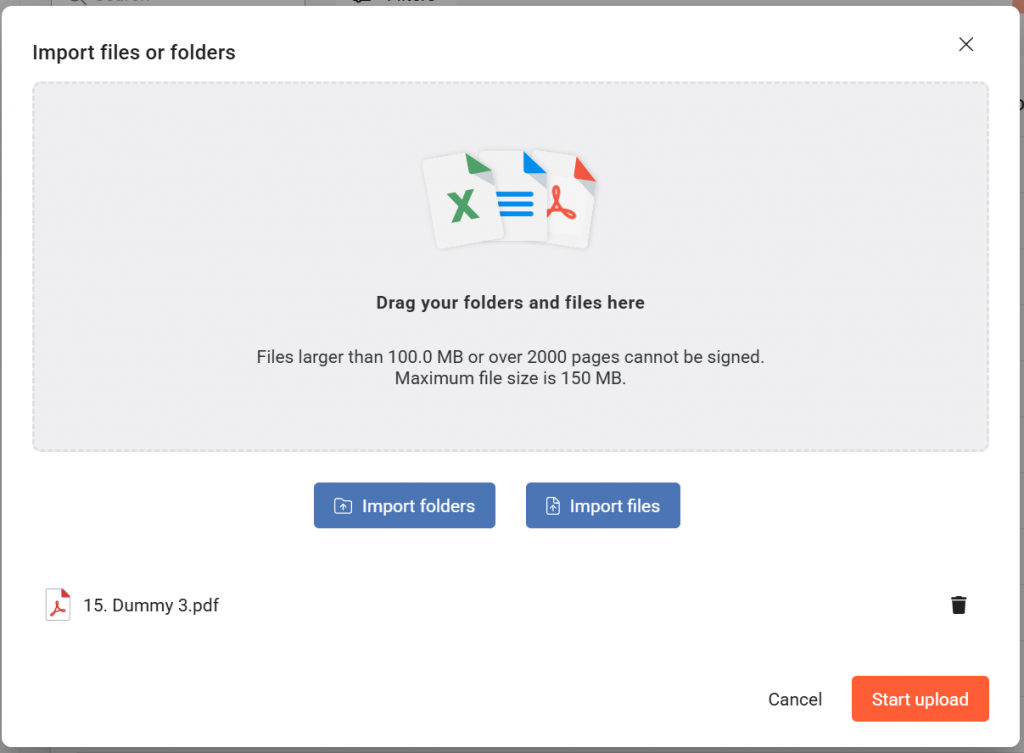
You can also drag and drop your files and/or folders.
Can Guests add files?
By default, yes. When a Project Manager creates a Project, all Guests can add files.
Later, Project Managers can deactivate this option on the Settings page.
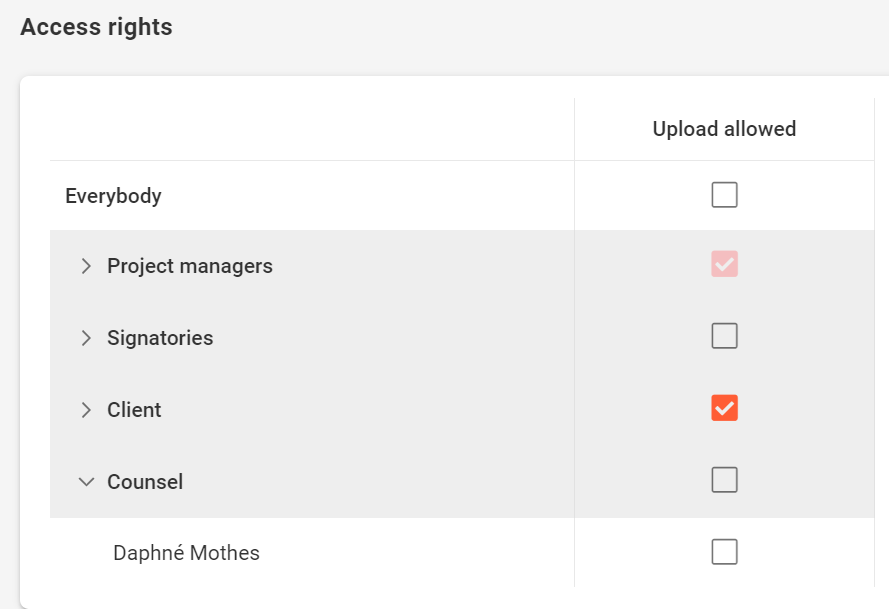
If you are a Project Manager, go to the Access rights area on the Settings page and decide which groups ou participants can add files.
- If a group or particpant is checked = they can add files on the Documents page (and the Checklist)
- If a group or participant is unchecked = they cannot add files on the Documents page (and the Checklist)
How to create version histories for documents?
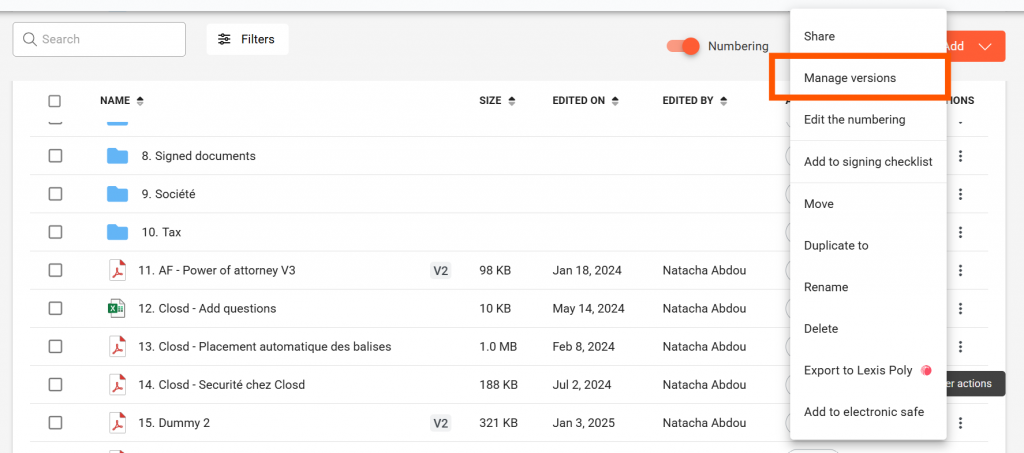
Click on the three dots icon to open a document’s menu, then click on Manage versions
Select a file from the Closd project, your computer or more options (LexisPoly or iManage if the option is activated). Click on Add to validate, the new version will be added.
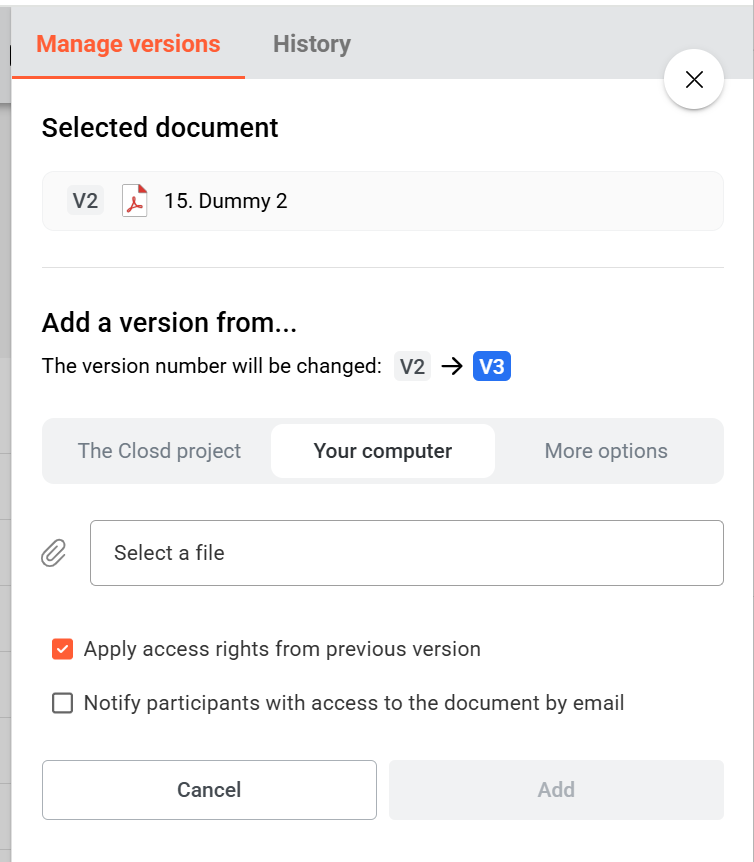
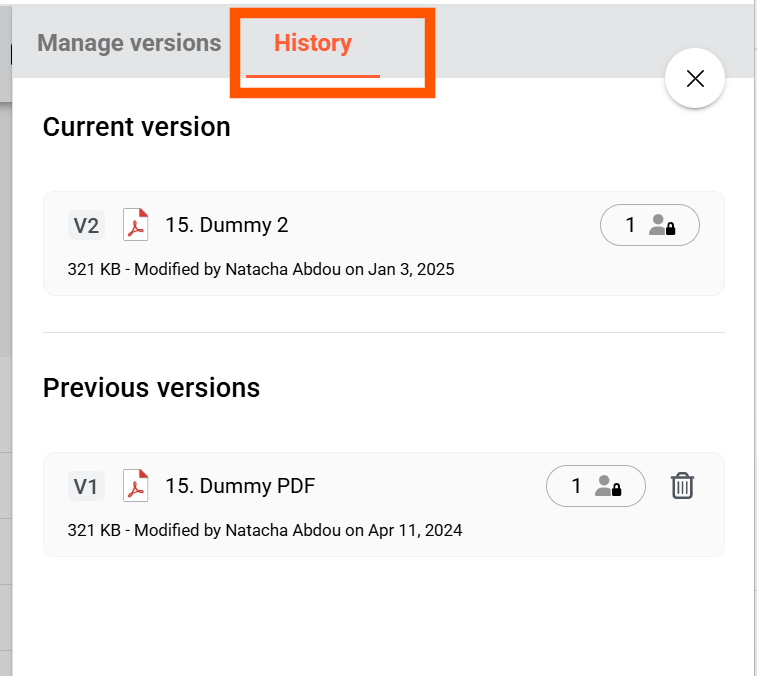
In the document’s menu, click on Manage versions then History to view all existing versions.