- When you have a document to sign, you will receive a notification by email. Click the Sign button in the email or go to the My signatures page to access the relevant Project.
- If you are signing using the Advanced electronic signature and you have not yet completed your identity verification, you will automatically be guided through this step before your first signature.
- You are then redirected to the Docusign or CertEurope signature interface. If you are doing an Advanced electronic signature, you will first need to enter your Closd login credentials (email address and password). Click on Continue, and you will be automatically directed to the location of your signature on the document. If you need to put different elements on the document (for example, a mandatory text field or initials, in addition to the signature), you will be directed to each element one by one.
- Once you have completed all the items, click Finish. If it is an Advanced electronic signature, you will receive a code by SMS to the number you provided during your identity verification. Once you enter the code, the document is signed.
How do I change my phone number?
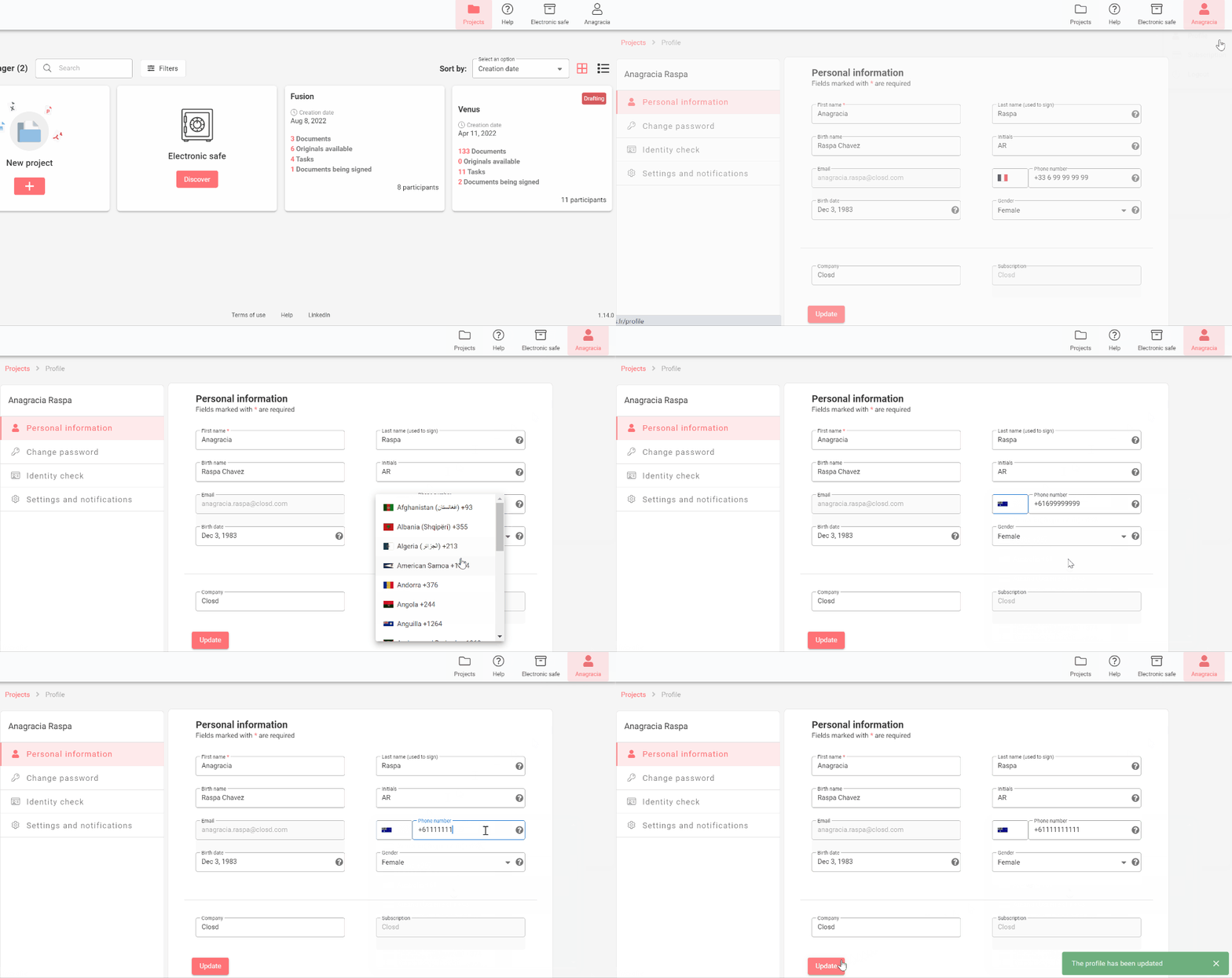
If the phone number entered during your identity verification is not correct, you can change it at any time. To do so, exit the signing interface, log into Closd, and then go to your profile by clicking on your name at the top right of the interface. Modify the telephone number in the corresponding box, then click on Validate at the bottom of the page.
You can then return to the signature interface to sign your document, and you will receive the SMS on the correct phone number.