
You have two levels of access rights:
- Task access rights
- Attachment access rights for tasks
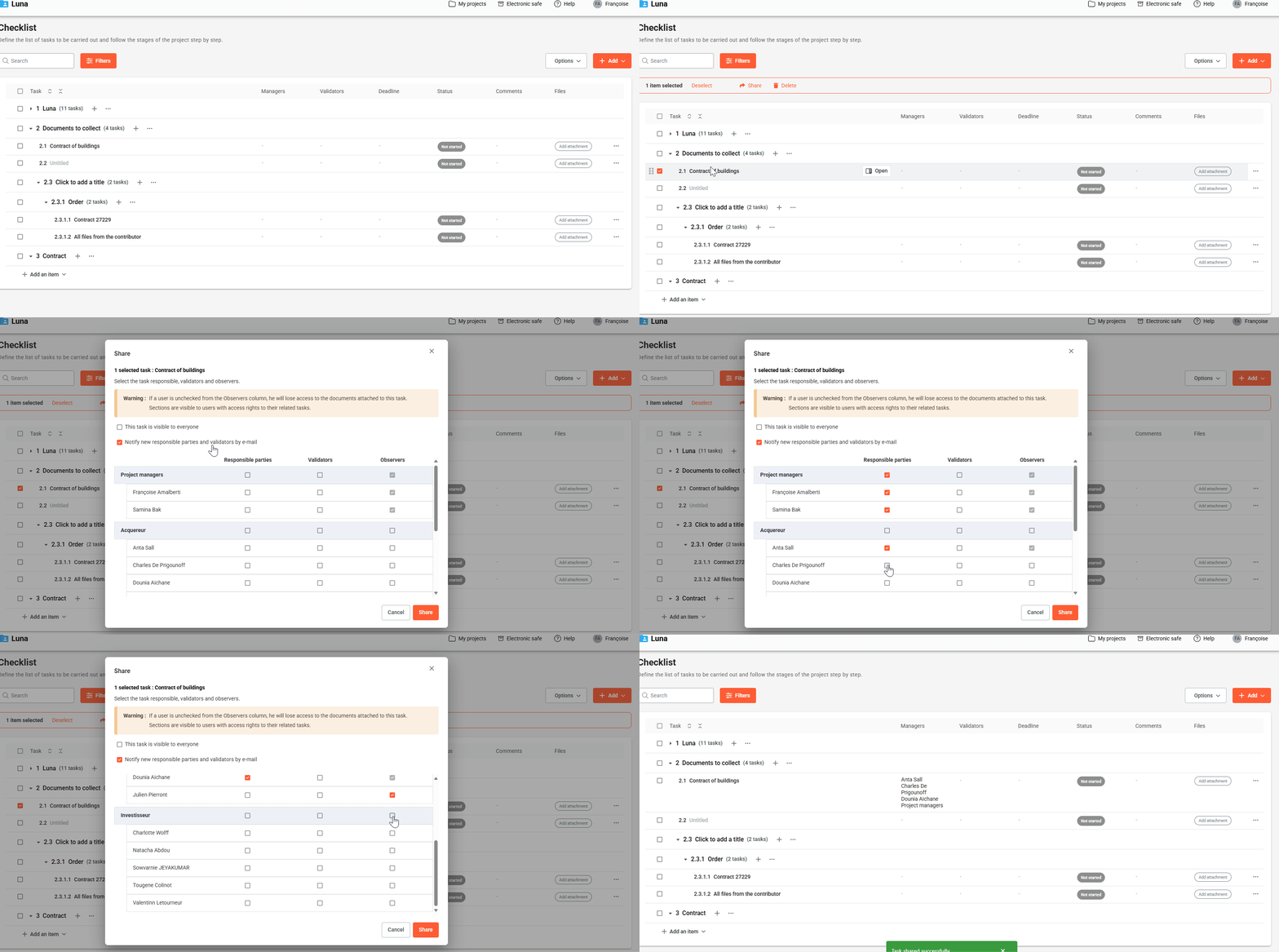
As a Project Manager, you can define access rights for tasks on the Checklist, choosing which Participants (or Groups) can see each task.
How to share a task?
- After creating a task, hover your mouse over the share icon
to view its access rights (by default, it will be Project Managers only). - Modify the task’s access rights by clicking on the icon and checking the Participants that you want to see the task in the Observers column.
How to share multiple task’s attachments ?
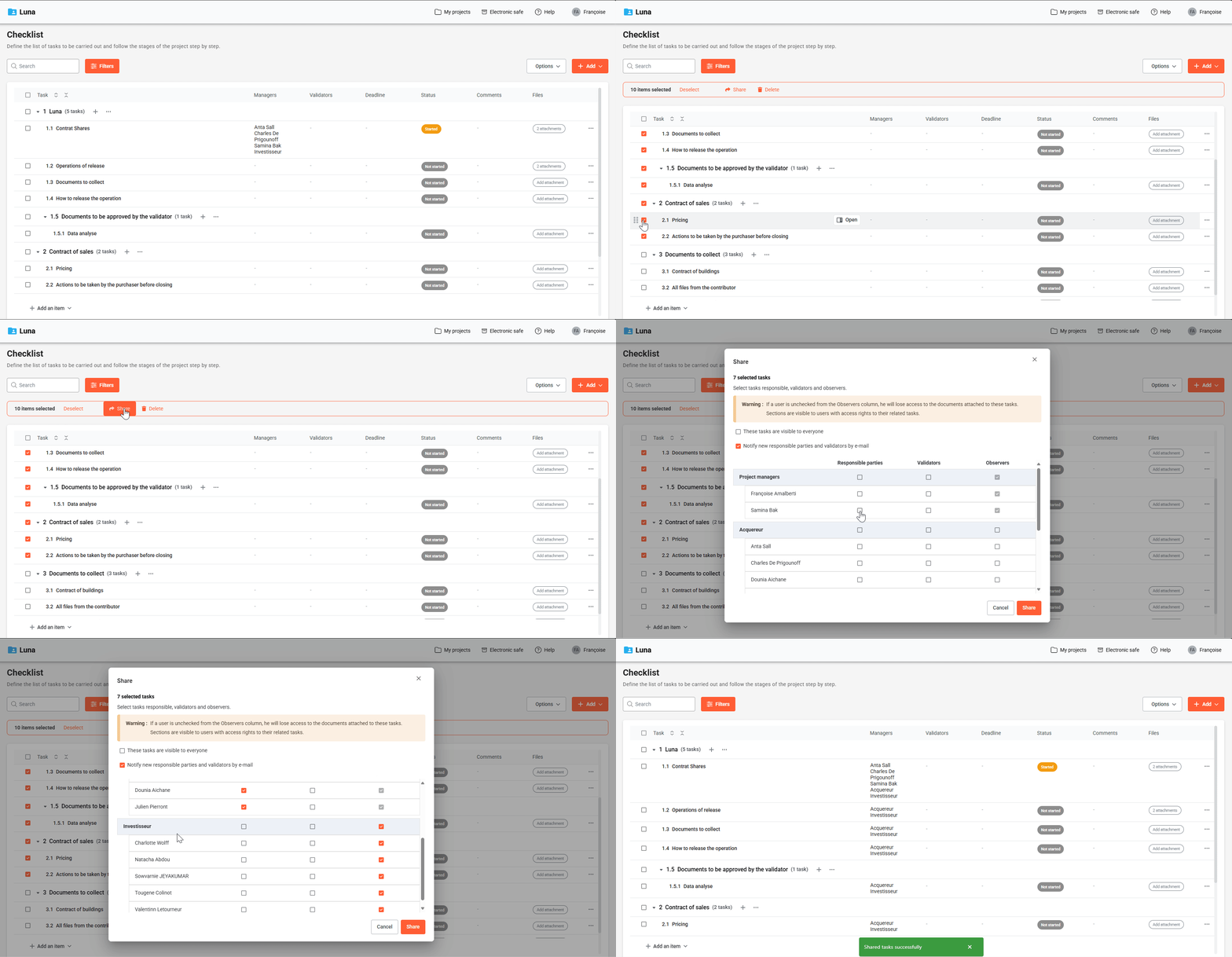
- Select the tasks to share by clicking the checkboxes to the left of the task titles.
- Click on Share in the action bar at the top.
- In the Assignee, Approvers, and Observers columns, select the participants who should have access to the task.
- Click Share to confirm.
How to share a task’s attachments?
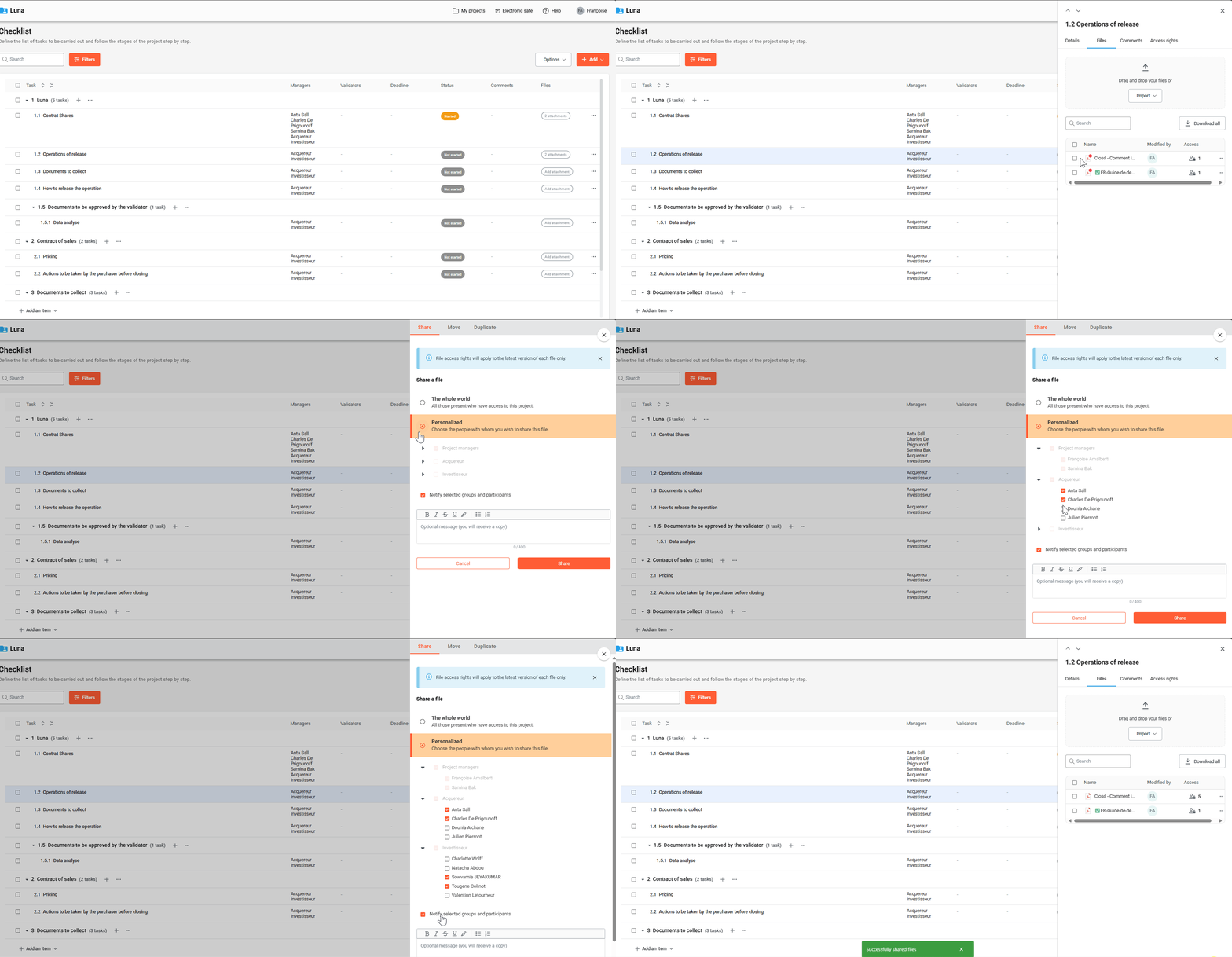
- Click on the task’s Attachments
- Set the sharing permissions you can click on Everyone or Custom
How to share all checklist attachments at once?
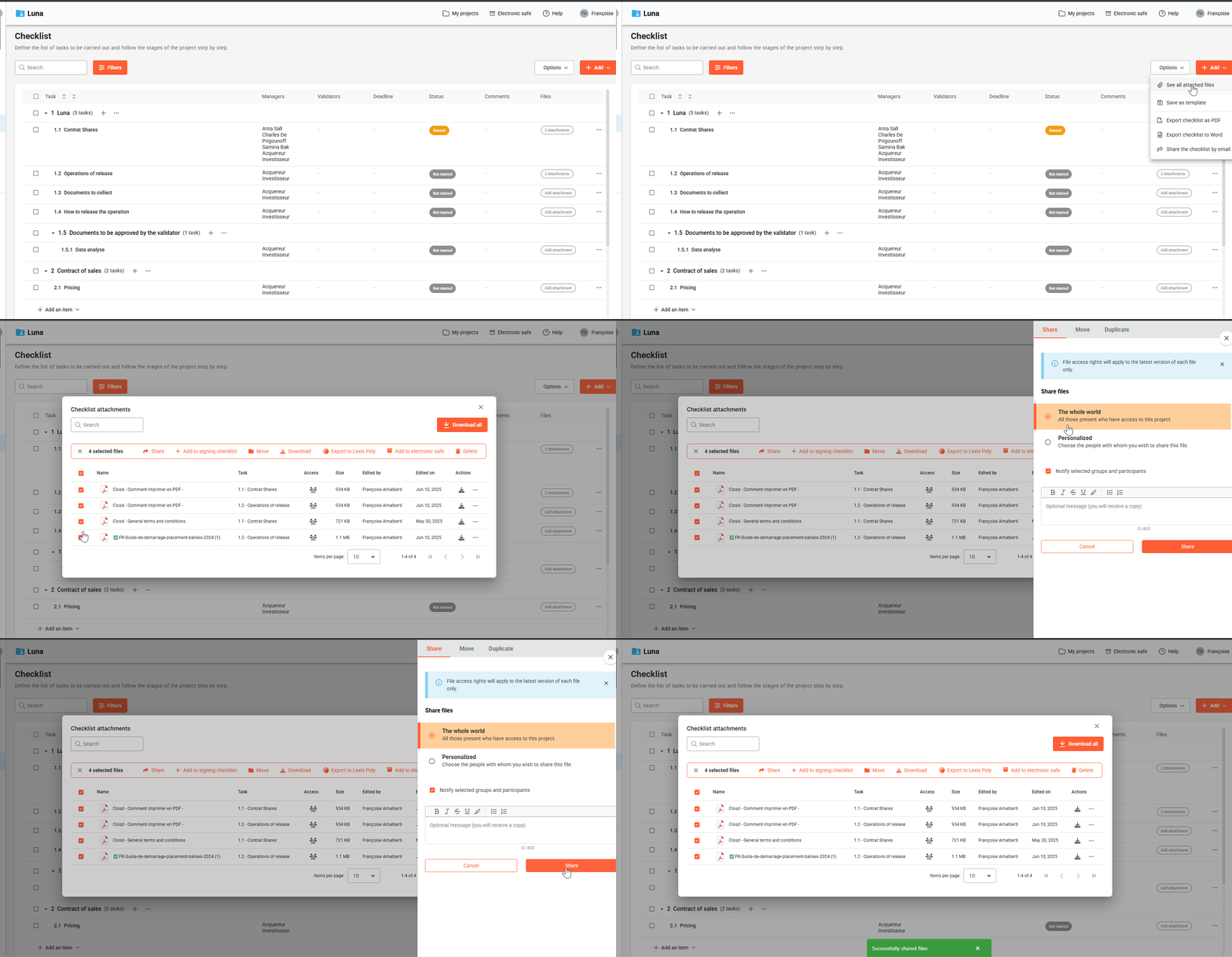
- From the Checklist page
- Click on Options, then View all attachments
Select all folders - Click Share in the action bar that appears
- Set the sharing permissions — you can click The whole world or Custom
Who can change the status of a task?
Project Managers and Validators can change all statuses.
If a Participant is both a Guest and designated as Responsible parties, they can only update grey (Pending) and yellow (Started, Being draft, Transmitted, To be transmitted, To do, Awaiting validation) statuses.
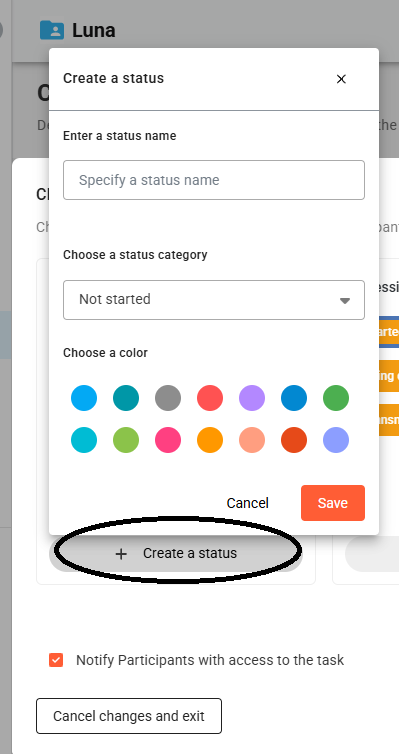
Create a Status
- Click “Create a status”
- Enter a status name
- Select a category
- Choose a color
- Click “Save”
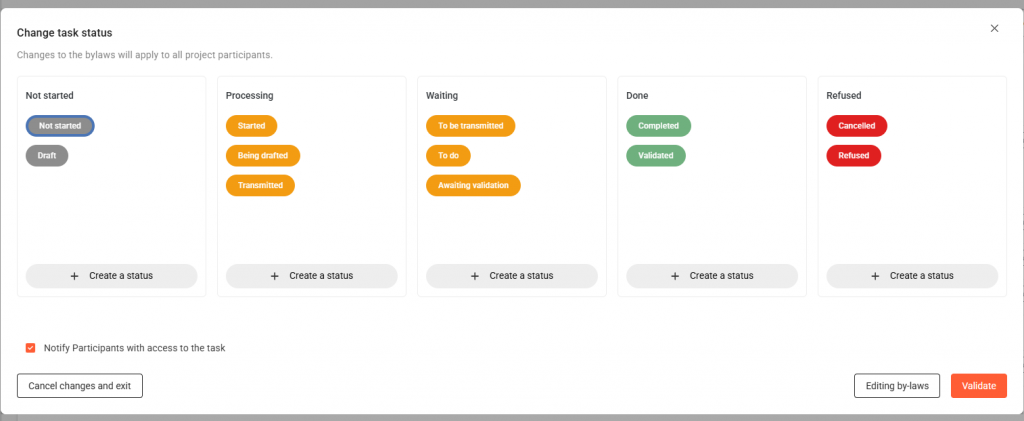
There are 12 default statuses, organized into 5 categories:
- Not Started: Not started, Draft
- In Progress: Started, In progress, Sent
- Pending: To be sent, To do, Awaiting approval
- Completed: Completed, Approved
- Cancelled: Cancelled, Rejected
Who can change the status of a task?
Project Managers and Approvers can modify all statuses.
Task Owners (who are not Project Managers) can select statuses from the Not Started, In Progress, or Pending categories.